 Norvane Systems
Wind Down
Build an evening of up to eight steps, like a shower, reading or stretching, with a soft chime as each one starts. Bedtime blocking switches off the apps that keep you up from the step you choose.
Bedtime routine and app blocker for iPhone
Unhaste walks you through the evening you plan and blocks just the apps you pick until morning, so music, books and your alarm can keep going. By day, it limits the apps that pull you in and keeps them away while you focus.
New subscribers get 7 days free on the yearly plan.
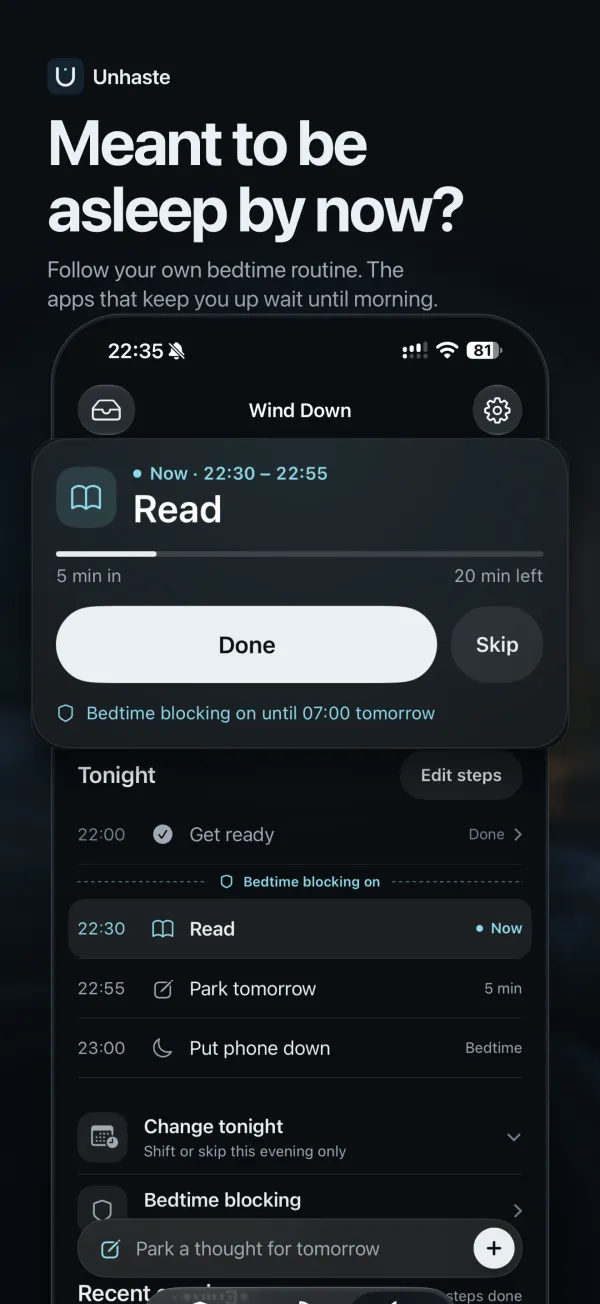
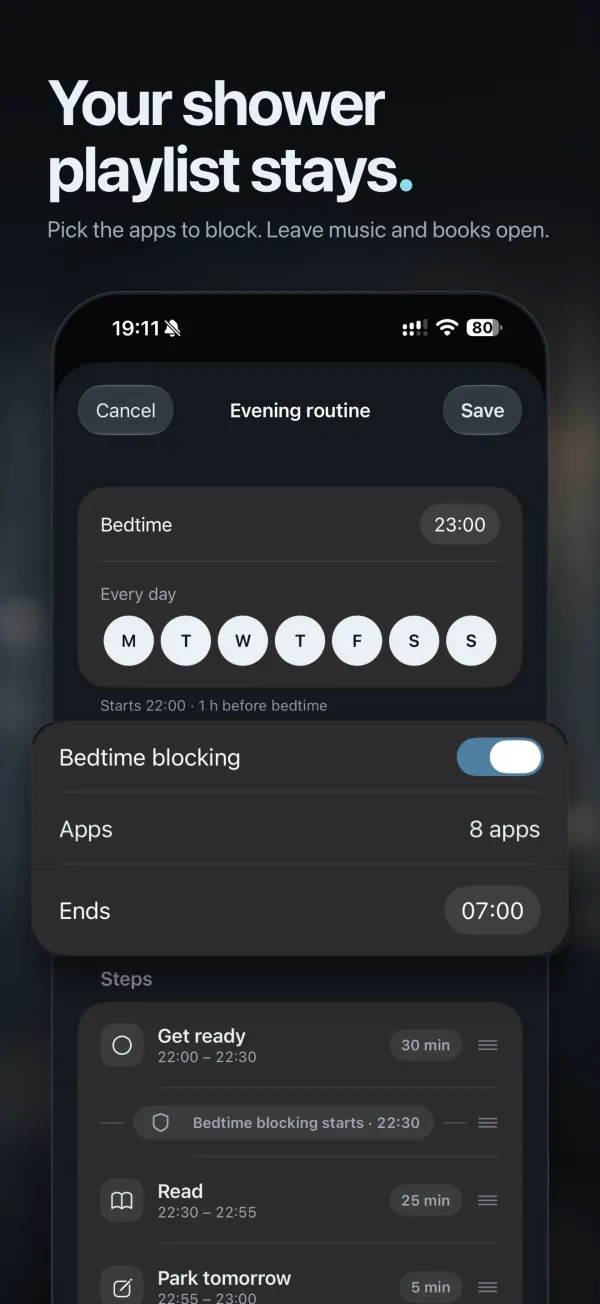
Build an evening of up to eight steps, like a shower, reading or stretching, with a soft chime as each one starts. Bedtime blocking switches off the apps that keep you up from the step you choose.
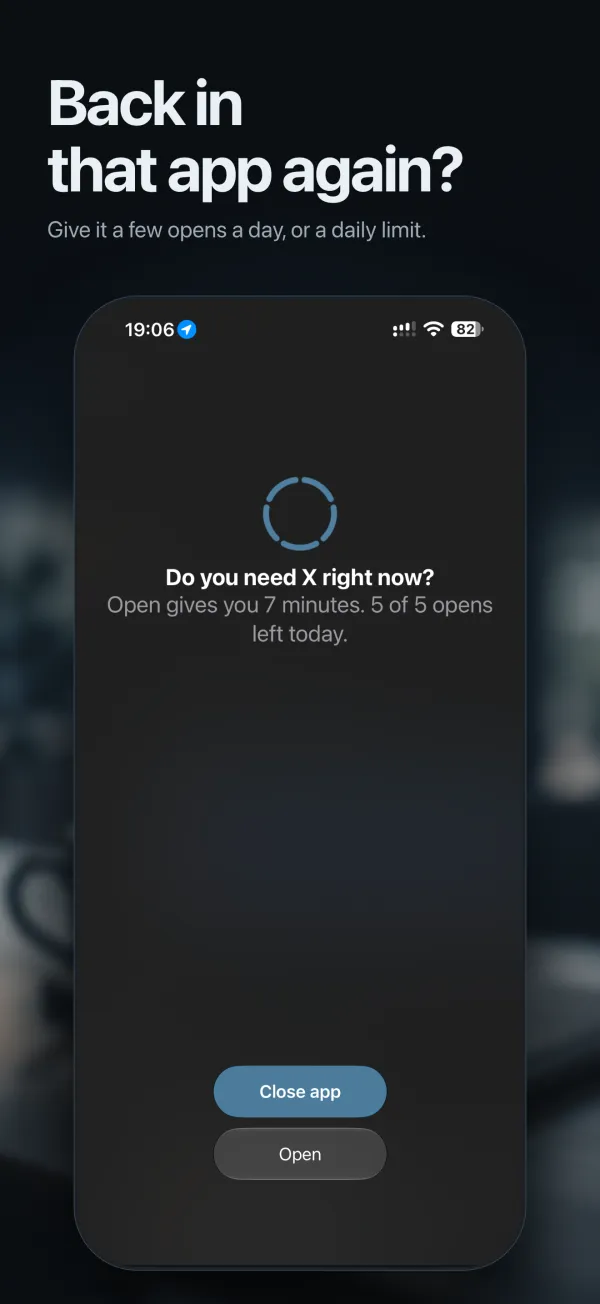
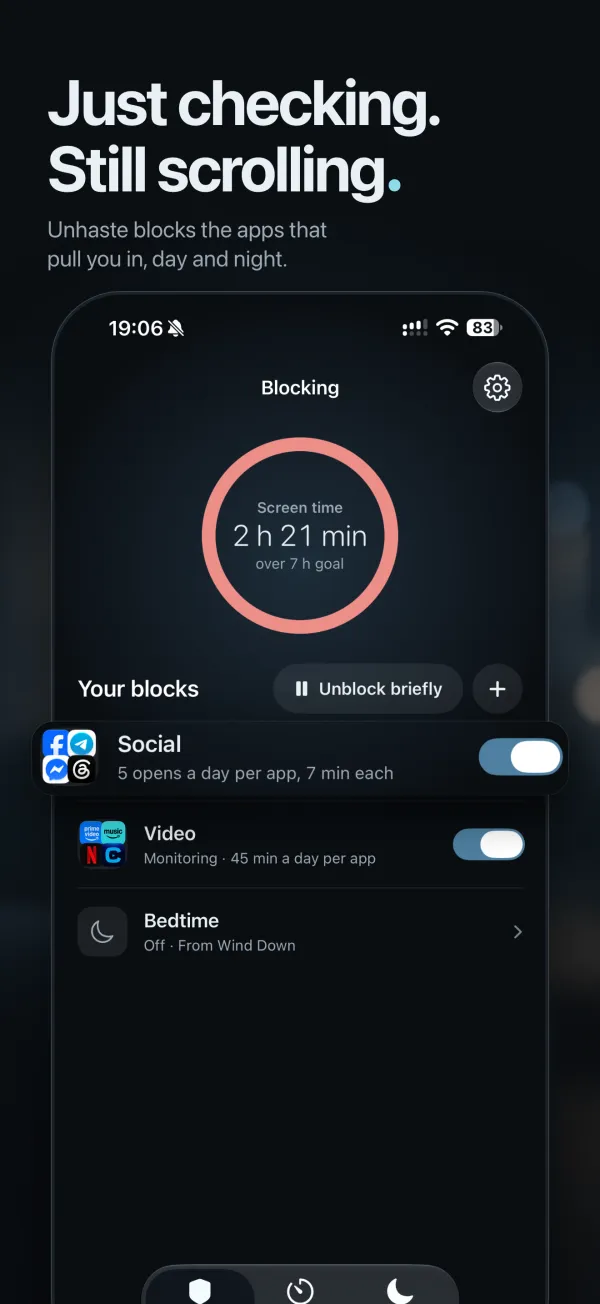
Give apps a few opens a day, a daily time limit, or block them outright, all day or at set hours. Before each open, Unhaste asks if you really need it.
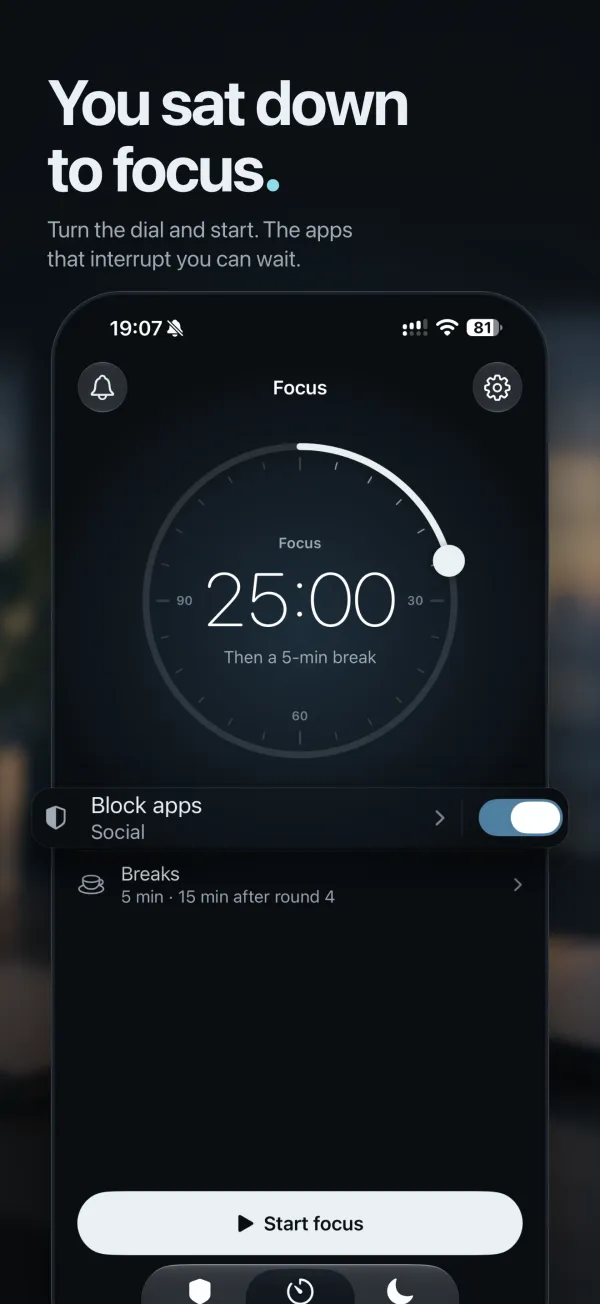
Turn the dial and start. Block distracting apps until you’re done, with breaks between rounds and a countdown on your Lock Screen.
Park a thought before bed, even while apps are blocked, and find it waiting in your morning inbox.
There’s no account. Usage charts are drawn by Apple’s private Screen Time report on your iPhone, and Unhaste doesn’t upload your usage, app choices, routines, or notes. Privacy Policy
Why you stay up later than you mean to, and a simple plan that gets you to bed on time.
Copy a 15-, 45- or 60-minute evening plan and keep it going, even on late nights.
Put the feeds away at night and keep the apps you need, starting tonight.
Get tomorrow out of your head in five minutes, and find it waiting in the morning.
A few opens a day, daily limits, set hours, bedtime and focus: every way Unhaste blocks apps.
Give any app a few opens a day, and make every open a decision.
Switch Instagram off at bedtime and keep it to a few short checks by day.
Give the For You feed an end: blocked at night, capped by day.
Stop the autoplay at bedtime and give YouTube a daily limit, with your music still playing.
Everything you block with Opal, plus a bedtime routine and a place for tomorrow’s thoughts.
Real friction without hardware: open limits, daily limits and a bedtime routine.
A pause before every open, plus focus sessions and a bedtime routine.
How is Unhaste different from Screen Time? It’s built to help you keep your limits. Unhaste asks before every open, can limit opens as well as minutes, and keeps an app closed once they’re used up. It also blocks distractions while you focus and switches apps off at the step of your bedtime routine you choose. Unhaste vs. Screen Time
What do I need? An iPhone with iOS 17 or later. Unhaste uses Apple’s Screen Time, which you allow during setup.
Can I try Unhaste for free? Yes. New subscribers get 7 days free on the yearly plan, with every feature included. You’ll see your price in the app before you subscribe, and you can cancel anytime in your Apple Account settings.
Can I still open a blocked app? Yes, if you really need to. Blocking adds friction, not a lock: Unblock briefly pauses all blocking for up to an hour, and you can change or remove a block at any time. Your alarm and every app you didn’t pick keep working.
Does Unhaste track my sleep? No. It doesn’t measure sleep or read health data. It walks you through the evening you plan and keeps the apps you pick off until morning.
Set up your evening in a few minutes, and Unhaste takes it from there.
New subscribers get 7 days free on the yearly plan.
Apps still blocked? In Unhaste, open Settings › Help › Blocking isn’t working right and tap Reset block schedules. If apps stay blocked, turn off Unhaste in iOS Settings › Screen Time › Apps with Screen Time Access.
Something else? Email [email protected], or use Settings › Help › Email support, which attaches diagnostics and an activity log of up to two weeks. Neither contains notes or the names of apps, websites, blocks, or steps, and you can delete them before sending.
Subscriptions are billed by Apple. Manage or cancel them in your Apple Account settings, and request refunds from Apple. Deleting the app doesn’t cancel a subscription.