 Norvane Systems
Why TikTok is so hard to put down at night
The For You feed has no end, and every video is short enough that one more feels harmless. That’s how 11:30 becomes 1 a.m. A feed that never ends needs you to give it an ending.
Can you block TikTok with Screen Time?
Up to a point. iPhone’s built-in Screen Time can put TikTok on a daily time limit or include it in a schedule. But its limits offer Ignore Limit unless you’ve set a Screen Time passcode, and a schedule switches off everything you haven’t allowed, not just TikTok. TikTok’s own reminders can tell you you’ve been on a while, but a reminder is easy to swipe away.
How to block TikTok at night
- Download Unhaste and allow Screen Time access.
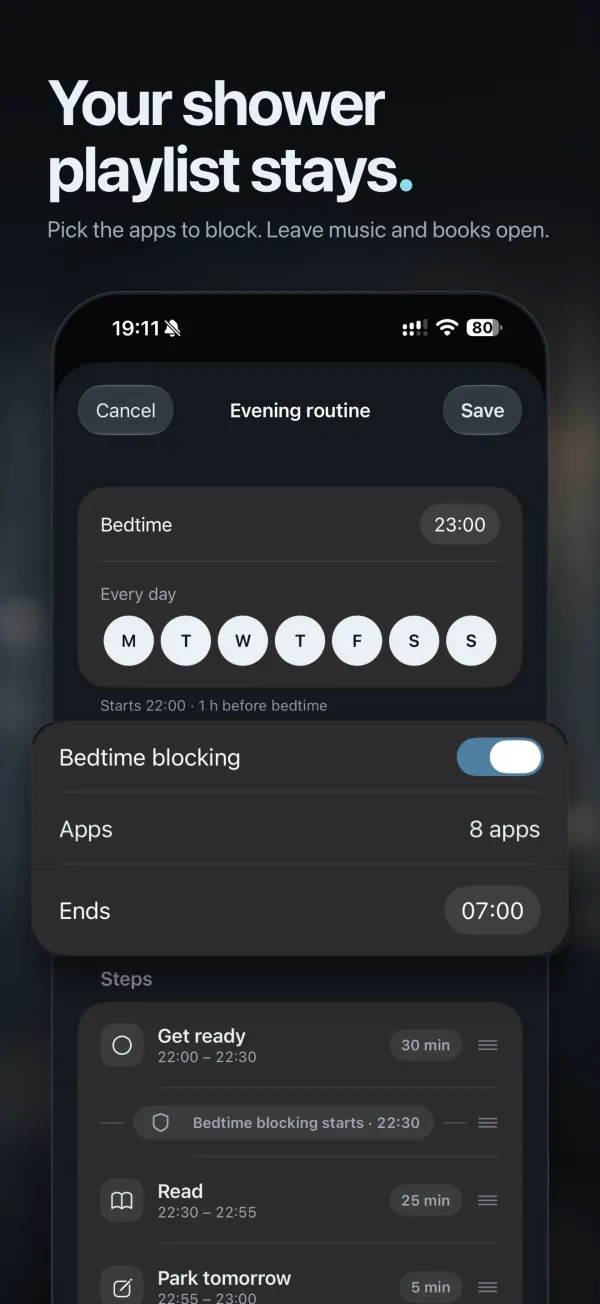
- In Wind Down, set your bedtime and turn on Bedtime blocking.
- Add TikTok to the apps it blocks, along with any other feed that keeps you up.
- Drag the Bedtime blocking marker to the step where TikTok should switch off, and choose when it comes back in the morning.
Prefer a fixed time? On the Blocking tab, give TikTok a block with set hours instead, like 10 p.m. to 7 a.m.
Keep TikTok in check during the day
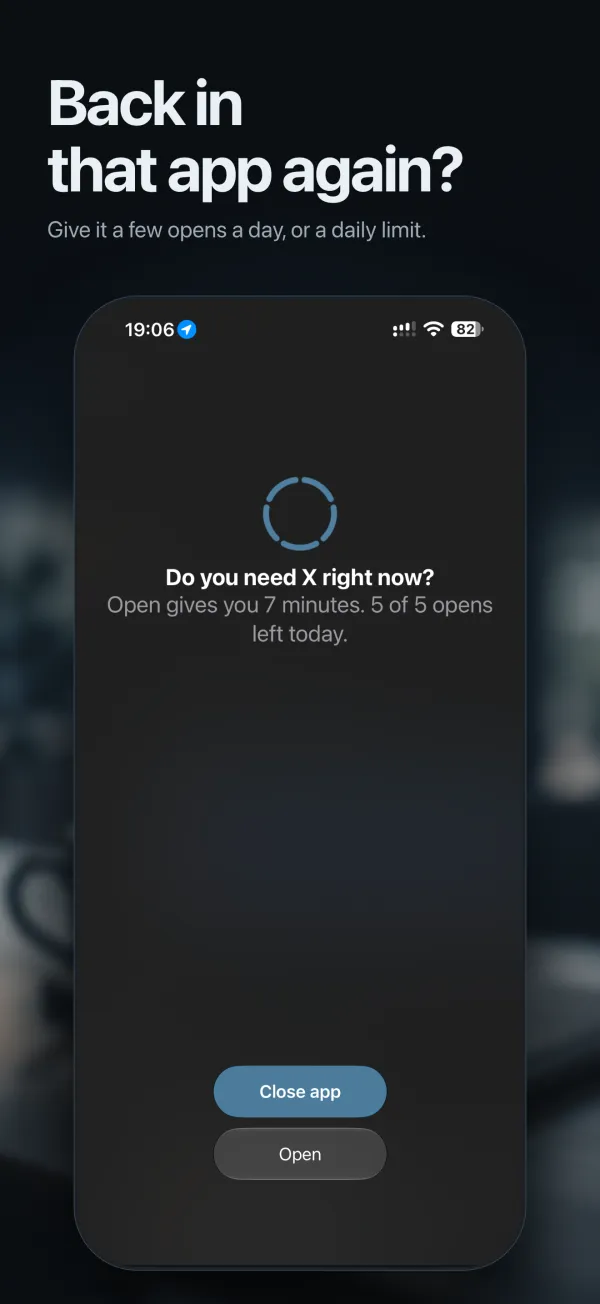
Give TikTok a daily time limit, like 30 minutes. It works normally until the time is used, Unhaste can warn you five minutes before, and then it’s closed for the rest of the day. Rather not have it at work at all? Block it outright from 9 to 5 on weekdays.
Add tiktok.com to the same block, so the browser isn’t a back door. For more options, see every way Unhaste blocks apps.
Questions and answers
How do I block TikTok without deleting it?
Block it with Unhaste. TikTok stays installed with your account and drafts intact. It just won’t open while the block is on.
Can I block TikTok only at night?
Yes. Add it to Bedtime blocking, or give it a block with set hours, like 10 p.m. to 7 a.m.
Can I still watch TikTok sometimes?
Yes. Instead of blocking it, give TikTok a daily time limit or a few opens a day.