 Norvane Systems
Three ways to limit an app
Every block in Unhaste has its own apps and its own rule for how they open. Pick the rule that fits each app.
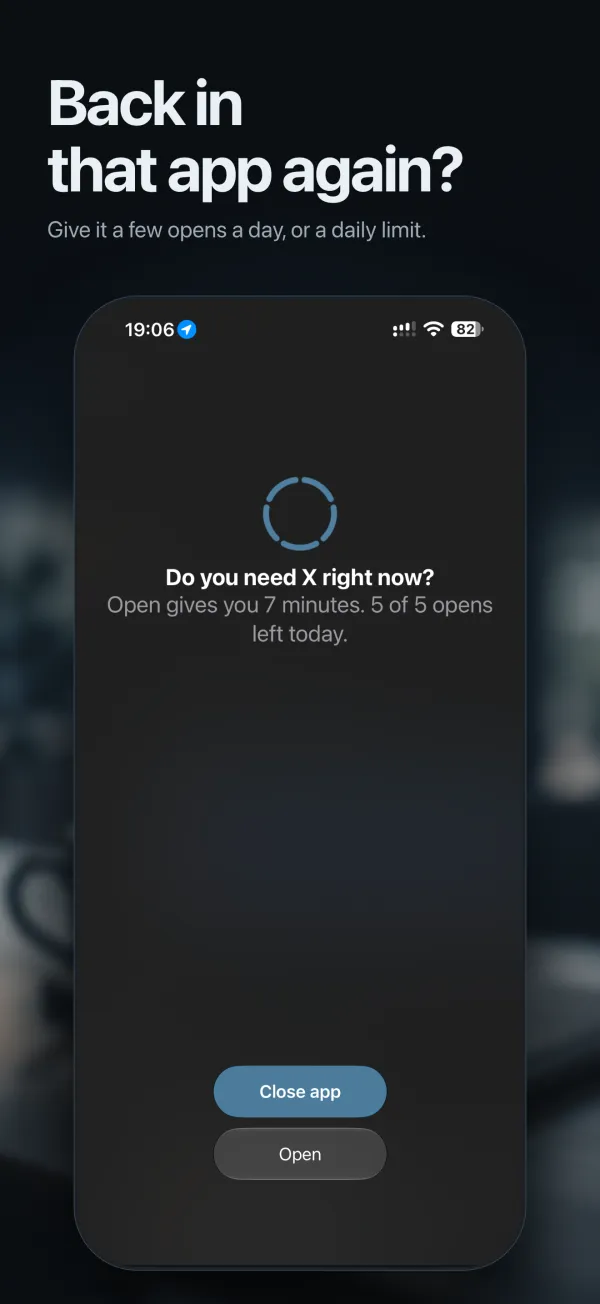
A few opens a day
Give Instagram five opens of seven minutes each. Every open becomes a decision: Unhaste asks “Do you need Instagram right now?” and, if you do, unlocks only that app for the minutes you chose. When the opens are used up, the app stays closed for the rest of the day.
A daily time limit
Set a daily allowance from 5 minutes to 12 hours, like 45 minutes of YouTube. The app works normally until the minutes are used, Unhaste can warn you five minutes before, and then it’s blocked for the rest of the day.
Blocked
No opens at all while the block is on. Use it for the apps you never mean to open at work, or at all.
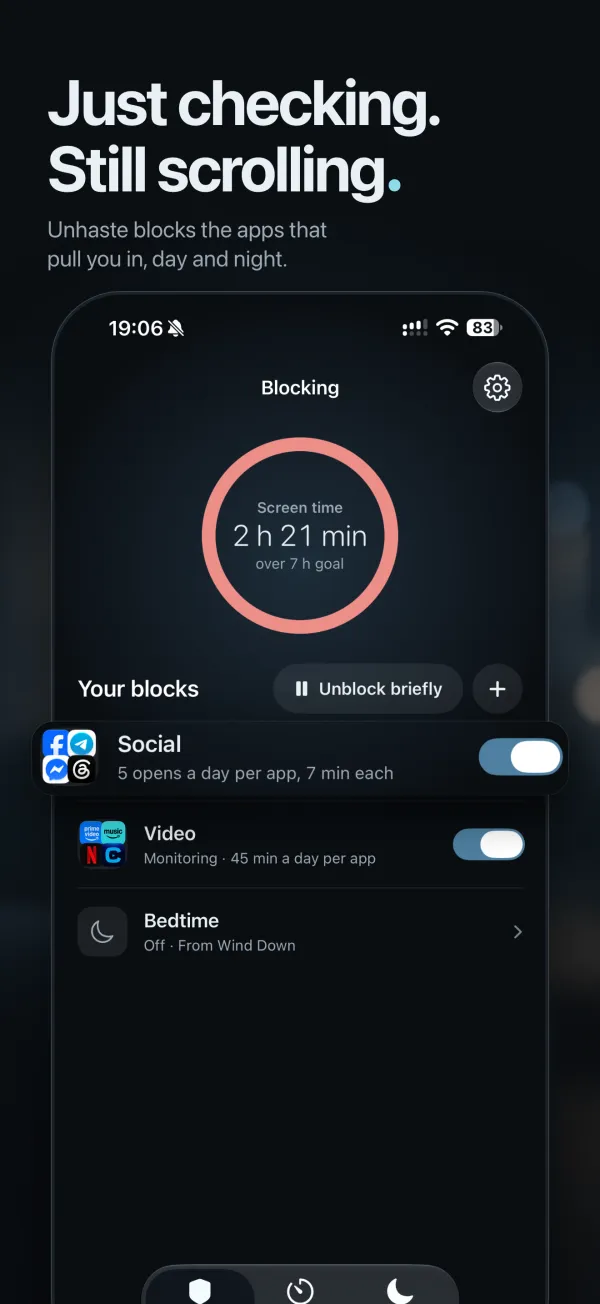
Opens and minutes can be shared by every app in a block or counted for each app on its own, so five opens can mean five in total or five each.
Block apps on a schedule
Each block runs all day or during set hours, on the days you choose. Overnight hours work too, so 10 p.m. to 7 a.m. is one block. A few ways to use it:
- Work hours: social and news apps blocked from 9 to 5 on weekdays.
- Evenings: video apps get two opens of 20 minutes between 6 and 10 p.m.
- Late nights: games blocked from 10 p.m. to 7 a.m.
- Weekends: social apps get three opens a day on Saturdays and Sundays.
Set up as many as six blocks, each with its own apps and rule, and switch any of them on or off from the Blocking tab.
Block apps at night with Bedtime blocking
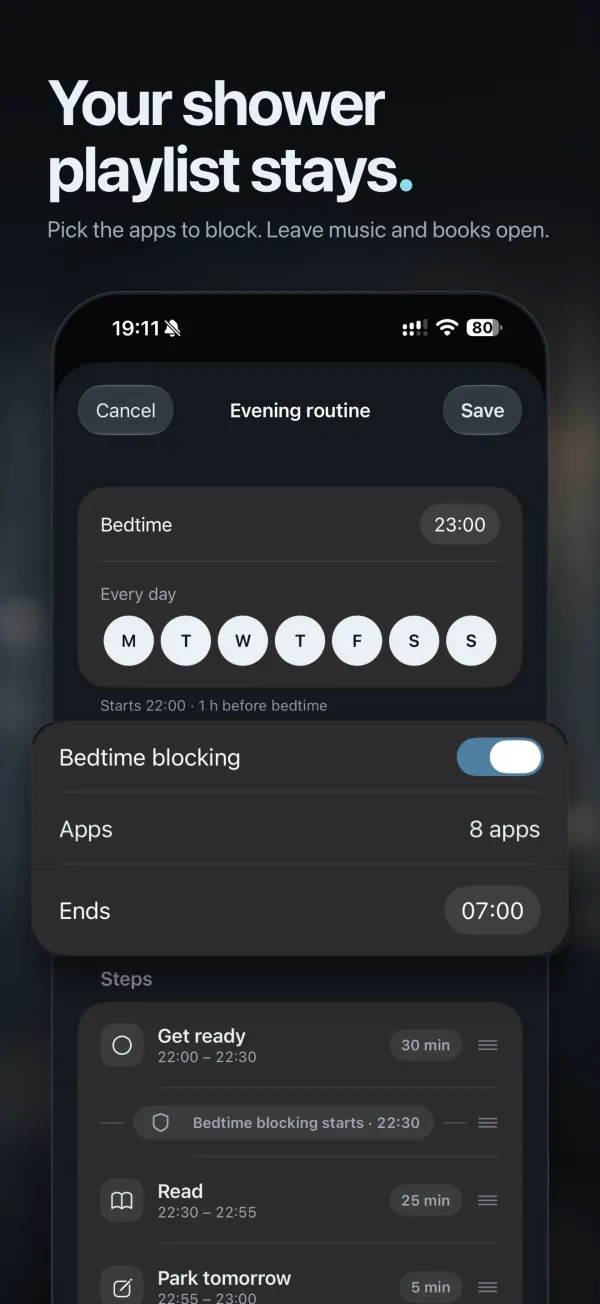
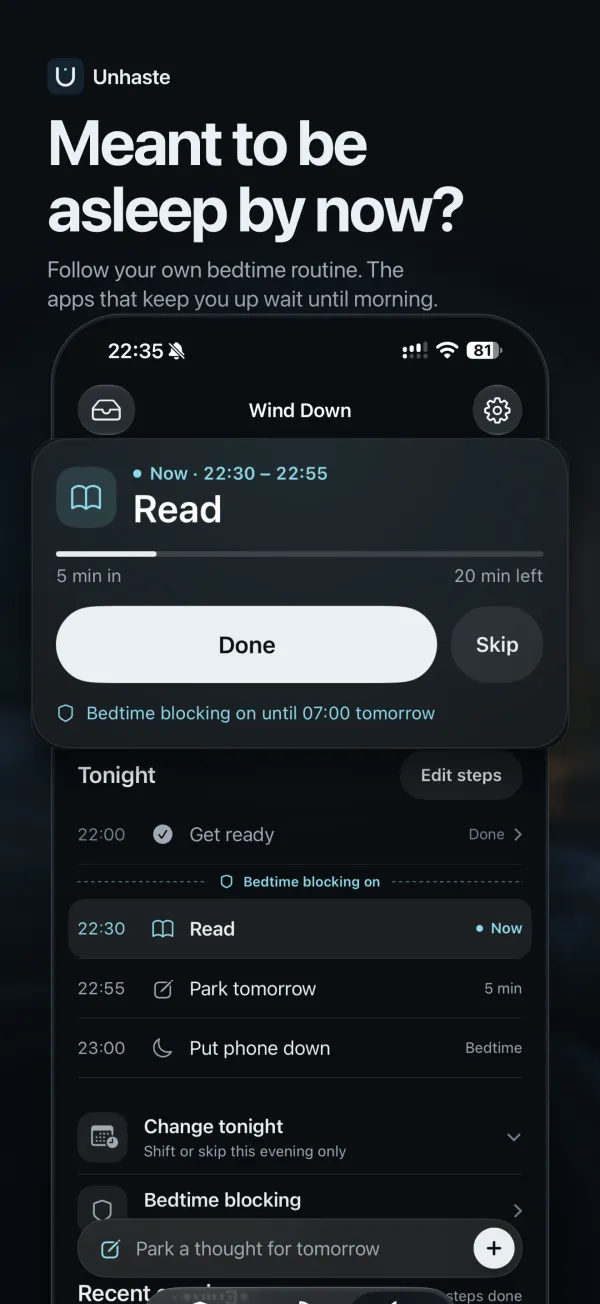
Bedtime blocking is built into Unhaste’s evening routine. List the steps of your evening, like a shower, skincare or reading, and drag the Bedtime blocking marker to the step where your apps should switch off. They stay blocked until the morning time you set.
Pick just the apps that keep you up. Your shower playlist, audiobooks and alarm stay available, so you can wind down without giving up your phone. Running late? Shift or skip just tonight, and the rest of the week stays as planned.
Need a routine to start from? Here are three bedtime routines you can copy. Or go app by app: block Instagram, TikTok or YouTube at night.
Block distractions while you focus
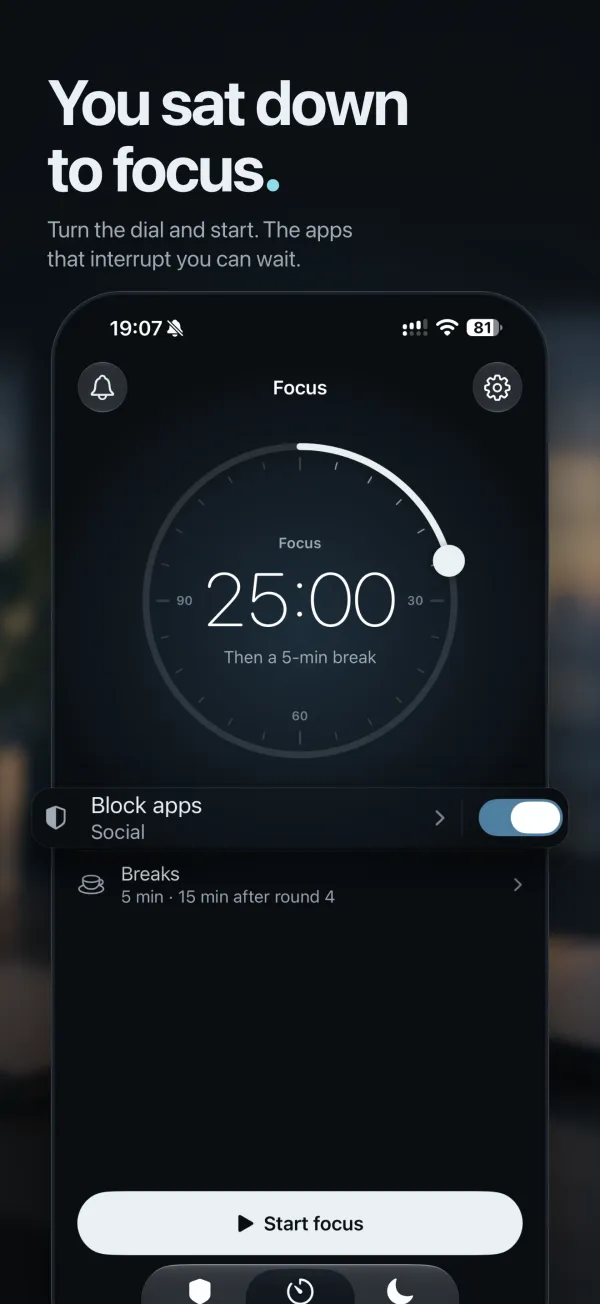
Turn the Focus dial anywhere from 15 minutes to two hours and start. Block distracting apps until the session ends, take short or long breaks between rounds, and follow the countdown on your Lock Screen. A soft chime tells you when time’s up.
No streaks to keep and nothing to lose. Focus is there when you need it.
Keep the apps you need
Unhaste blocks the apps, categories and websites you pick, not your whole phone. Choosing single apps rather than whole categories keeps the useful ones open: messages, maps, music, and anything else you rely on.
After an open, Relock closes the app again the moment you’re done, so a quick check stays quick.
Unhaste vs. iPhone Screen Time
Screen Time, built into every iPhone, can schedule time away from your apps and set daily time limits, and it’s where many people start. Unhaste uses the same Apple technology and adds what makes a limit easier to keep:
- Opens, not just minutes. Give an app a few opens a day instead of a time budget.
- A question before every open. “Do you need it right now?” turns a reflex into a choice.
- Limits that hold. When the opens or minutes run out, the app stays closed for the rest of the day. Screen Time’s own limits offer Ignore Limit unless you’ve set a passcode.
- Blocking tied to your evening. Bedtime blocking starts at the step of your routine you choose, not just at a clock time.
- Focus sessions that block apps until the timer ends.
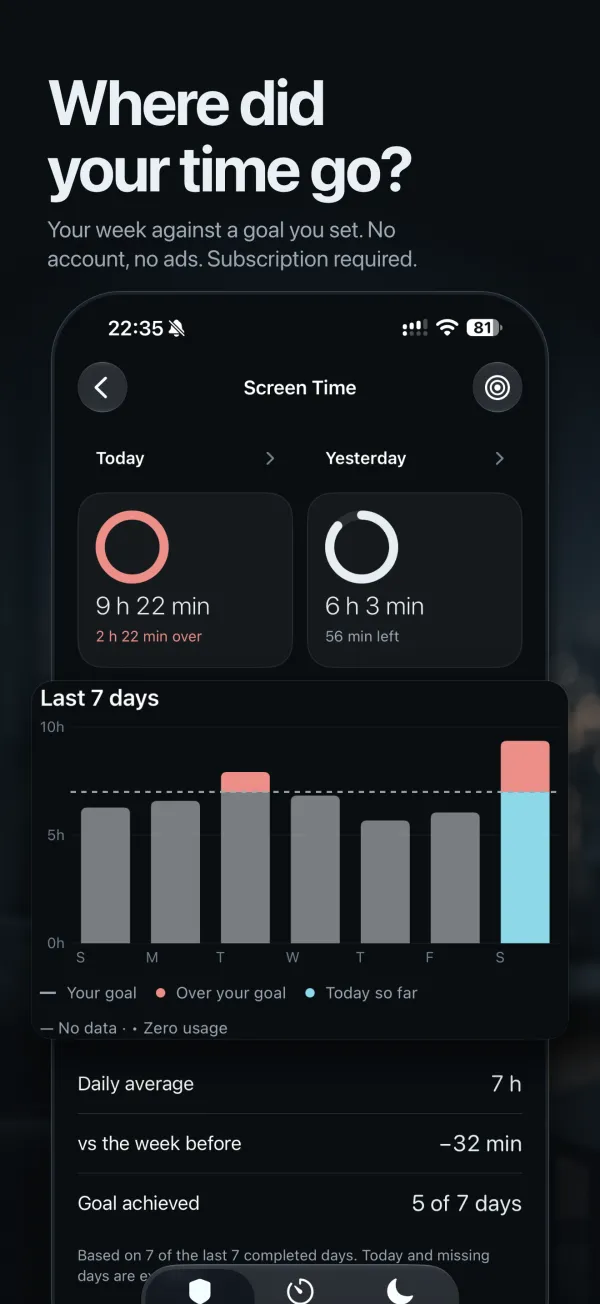
- A screen-time goal that shows today and the past week against a target you set, without blocking anything.
Set up your first block
- Download Unhaste and allow Screen Time access when asked.
- On the Blocking tab, tap + and pick the apps, categories or websites to block.
- Choose how they open: a few opens a day, a daily time limit, or blocked.
- Choose when the block applies, all day or at set hours on the days you pick, and switch it on.
Questions and answers
Can I block apps at night on iPhone?
Yes. Create a block with set hours, such as 10 p.m. to 7 a.m., or use Bedtime blocking in Unhaste’s evening routine, so apps switch off at the step you choose and stay off until the morning time you set.
Can I limit how many times I open an app?
Yes. Choose A few opens a day, then set how many opens you get (1 to 20) and how long each lasts (1 to 60 minutes). Unhaste asks before each open, and when the opens are used up, the app stays closed for the rest of the day.
Can Unhaste block websites?
Yes. Along with apps and app categories, you can choose websites to block.
Will I be locked out of my phone?
No. Unhaste blocks only what you pick, so your alarm and every app you didn’t choose keep working. If you truly need a blocked app, Unblock briefly pauses blocking for up to an hour and turns it back on by itself.
Is Unhaste private?
Unhaste has no account and no ads. Screen Time reports are drawn privately on your iPhone, and Unhaste doesn’t upload your usage, app choices, routines or notes.
Can I try Unhaste for free?
Yes. New subscribers get 7 days free on the yearly plan, with every feature included.